RedactDrop › Guides › Redact a PDF on Mac or Windows without Acrobat
Redact a PDF on Mac or Windows without Acrobat
Published 27 September 2026 · by Tekiba
Short answer: on a Mac, Apple's own guide to Preview describes a Redact tool (in the Preview guide for macOS Big Sur and later). On Windows, the PDF reader built into Microsoft Edge — where PDFs usually open on a new Windows PC — lists no redaction feature in Microsoft's documentation. Either way, RedactDrop runs in a web browser rather than as an app for one system — we test it in Chromium, the engine of Chrome and Edge — and the file is not uploaded.
Why “without Acrobat”
Adobe Acrobat Pro has a full redaction workflow: mark text or areas, apply the marks, and sanitize the hidden information in the file. Adobe's help pages describe it as a feature of Acrobat Pro, which is a paid product (Adobe: Redact sensitive content in PDFs in Acrobat Pro). If you redact a document once in a while, it is fair to ask what the computer you already have can do. The answer depends on the system, and it is worth checking what the makers themselves say rather than relying on a feature you half remember.
On a Mac: Preview
Apple's guide for Preview, “Annotate a PDF in Preview on Mac”, includes redaction among the markup tools. It says that you select text “to remove it from view”, that you can change the redaction while you edit, and that “once you close the document, the redaction becomes permanent”. It also notes a limit worth knowing: if the PDF has a table of contents, entries in it that link to redacted text are not removed (Apple Support).
Which Mac has it? Apple publishes that guide per version of macOS. The version for macOS Big Sur (Preview 11) describes the Redact tool; the version for macOS Catalina 10.15 (Preview 10.1) lists the markup tools without it (the Catalina guide). If your Mac runs Big Sur or later, look for Redact under Tools in Preview; if it runs something older, the tool is not described there.
What Apple's guide does not say is what else in the file — the document properties, attachments, bookmarks, comments — is removed or kept. So after redacting in Preview, check those yourself, as described at the end of this article.
On Windows: Microsoft Edge's PDF reader
On a new Windows PC, PDFs usually open in Microsoft Edge, whose built-in reader handles them. Microsoft's documentation for the Edge PDF reader lists what it can do: view and print, fill in basic forms, a table of contents, page views, inking, highlighting, text notes, read aloud, protected (Purview and IRM) files, and viewing digital signatures (Microsoft Learn: PDF reader in Microsoft Edge). Redaction is not in that list.
Whatever the viewer, a black highlight or a shape drawn over text is not the same as removing the text: unless a tool takes the text out, it stays in the file under the mark. The article Why a black box on a PDF is not redaction shows what that looks like.
In the browser: RedactDrop
RedactDrop is a web page that does the redaction in your browser tab, with the PDF read by pdf.js and rewritten by pdf-lib, both served from this site. It needs a current browser rather than a particular system — we test it in Chromium, the engine of Chrome and Edge — and the file is not uploaded: the page's Content Security Policy refuses its own requests back to this site, and the privacy page lists everything that is sent anywhere, none of it from your document.
- Open the redaction page in your browser and drop the PDF on it.
- Type the words to remove, one per line, or drag a box over an area of a page — a signature, a photo, a number.
- Press Redact and check. The words are taken out of the page's content, the places are painted black, the file is rebuilt without its metadata and other extras, and the new file is opened again and checked before it is offered.
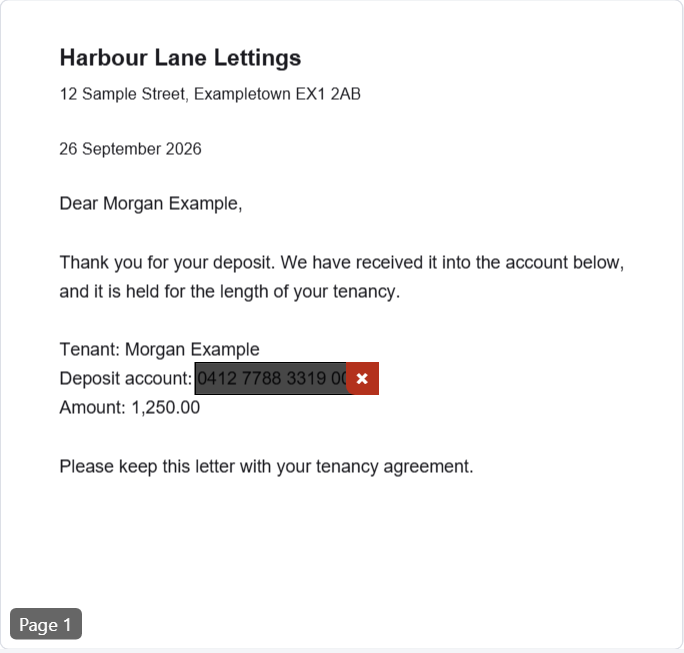
The free version handles one PDF of up to three pages. It works on the text in the PDF, so words in a scanned page are not found; there is no OCR. A box you draw over a scanned page still replaces the image's pixels under it.
How to check the result, whichever tool you used
- Search the redacted file for each word you removed, in your usual viewer.
- Select across the black areas, copy, and paste into a plain text editor. Nothing should come out.
- Look at the document properties (title, author, keywords) and at the attachments, bookmarks and comments panels.
- Open it in a second viewer — Preview and a browser, for example.
RedactDrop runs its own check before offering a file; the article What “verified redaction” means explains what it looks at and where it stops.
Redact a PDF on whatever computer you are using, in the browser, without uploading it. Open the redaction page.
Questions
Can Preview on a Mac redact a PDF?
Apple's Preview guide for macOS Big Sur and later describes a Redact tool that removes selected text from view and makes it permanent when the document is closed. The guide for macOS Catalina does not describe it.
Does Windows have a built-in way to redact a PDF?
Microsoft's documentation for the PDF reader in Microsoft Edge, where PDFs usually open on a new Windows PC, lists highlighting, inking and notes but no redaction. A highlight or a drawn mark over text is not the same as removing the text.
Does RedactDrop work on a Mac and on Windows?
Yes. It is a web page, so it runs in a current browser on either system; we test it in Chromium, the engine of Chrome and Edge. The PDF is not uploaded.
Do I need to install anything?
No. Open the redaction page in your browser. There is no account and nothing to install.