RedactDrop › Guides › Redact a PDF without uploading it
Redact a PDF without uploading it
Published 26 September 2026 · by Tekiba
Short answer: open RedactDrop's redaction page, drop the PDF on it, type the words to remove (or draw boxes over areas), and press Redact and check. The file is read and rewritten by JavaScript in your browser tab; there is no server that could receive it, and the page's Content Security Policy refuses the page's own requests back to this site. Before you download, the new file is opened again and checked for the words you removed.
Why upload a document you are trying to protect?
The PDFs people redact are the ones with something in them they do not want to spread: a name on a tenancy letter, an account number on a statement, a client's details in a report. Many online PDF tools work by sending the file to a server, doing the work there and sending a result back. That can be done carefully, and plenty of services do. But it means a copy of the original — the version with the words still in it — has travelled to somebody else's computer, and you are relying on what they say they do with it.
Redaction is a case where the work does not need a server at all. Reading a PDF, finding text in it and writing a new file are all things a browser can do on its own. So RedactDrop does all of it in the tab, and the original never goes anywhere.
How it works without a server
RedactDrop is a static site: HTML, CSS and JavaScript files, with no application server or database behind them. When you drop a PDF on the page, it is read with pdf.js and rewritten with pdf-lib, both served from this site and running in a background thread of the same tab. The redacted PDF is assembled in memory and handed to your browser as a local download.
Part of this is enforced by the browser: every page is served with a Content Security Policy, and its connect-src directive (MDN), which governs the page's fetch, XHR and beacon requests, allows Google Analytics' collection addresses, Paddle's checkout, and the licence service with its test copy. This site's own address is not on the list, so if a later version of our code tried to post your document back to us that way, the browser would refuse. The policy is not a sandbox around the page, so the rest rests on what the code does — which is why it is worth checking yourself. The privacy page lists what each allowed address is sent: nothing from your document except, to Google Analytics, whether a check passed and two counts.
You can check this yourself. Open your browser's developer tools on the redaction page, go to the Network tab and redact a PDF. You will see the page's own files and, after the page has loaded, Google Analytics' tag and a counter with a status and two numbers. You will not see a request carrying your file, its text or the words you typed. The policy itself is in the response headers of any page.
One thing it is not is an offline app. The page needs a connection to load, and it fetches its PDF reader the first time you open a file. What never needs the network is your document.
Three steps
1. Drop the PDF and type the words. Put one word or phrase per line. Choose whether case matters, and whether full-width and half-width letters count as the same. To black out an area rather than a word — a signature, a photo, a table cell — drag a box on the page preview instead.
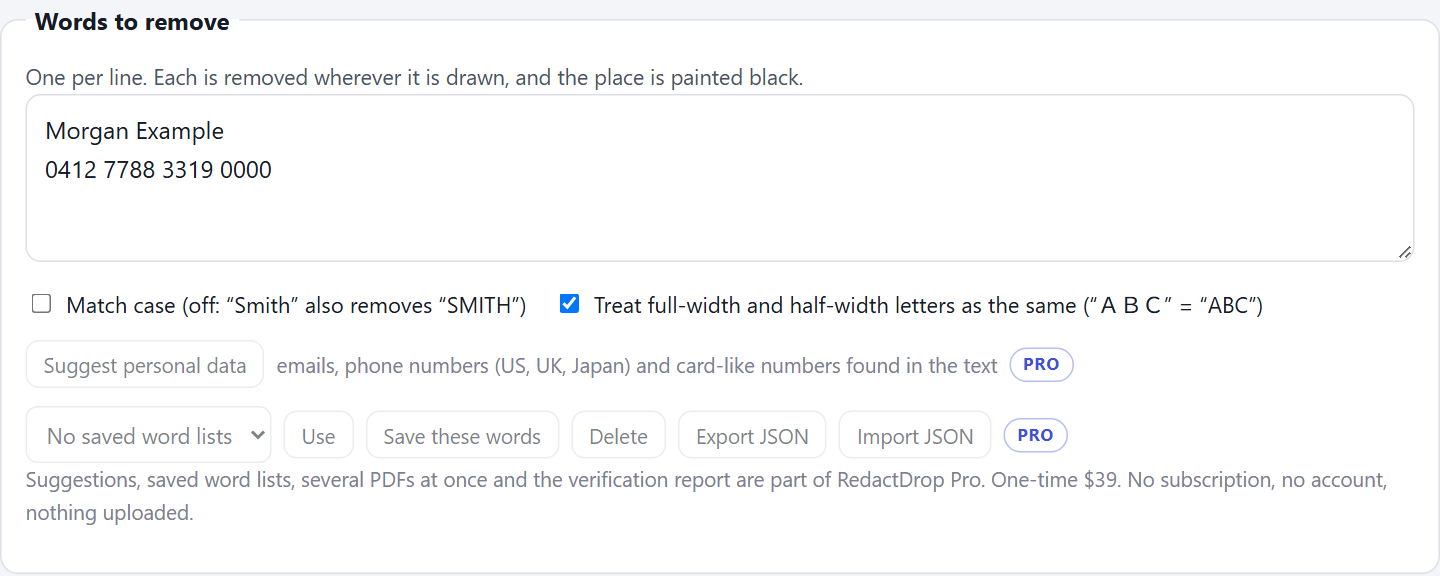
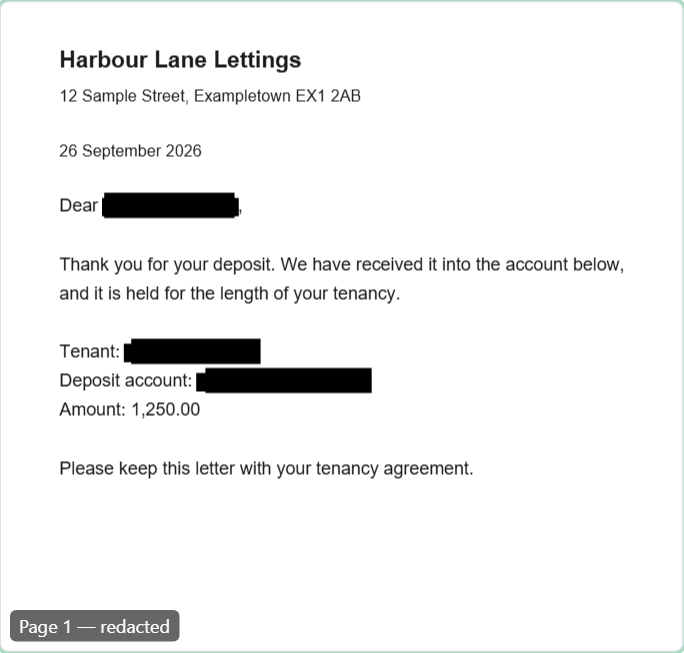
2. Press Redact and check. Where each word is drawn, the drawing instruction is taken out of the page's content and the place is painted black. The new file is then rebuilt from what is needed to draw the pages, so metadata, attachments, comments and similar extras are left out; links, bookmarks and the look of form fields and comments can be kept if you tick them. Then it is opened again and checked.

3. Look at it, then download. The preview shows the redacted page. Download it, open it in your usual viewer, and search it for the words you removed.
What “Verified” means
The check opens the new file with a separate copy of pdf.js and with checks of RedactDrop's own: the text on every page, the strings and names in the file, its decoded streams and their bytes in several encodings (image data such as JPEG excepted), the metadata and the annotations. If a page does not pass, no file is offered. It says what was checked and what was found — “0 matches remain, 0 metadata fields” — rather than promising more than that.
Sometimes a page cannot be cleaned in place: a shape under a box you drew might be a curve RedactDrop cannot cut, for instance. Then you can choose to turn just that page into an image. The page tells you what that costs before you choose: an image page has no selectable text, and its pixels are not checked for words.
What the free version does, and what it does not
The free version redacts one PDF at a time, of up to three pages, with the same check. RedactDrop Pro removes the page limit, takes several PDFs at once as a ZIP, suggests email addresses, phone numbers and card-like numbers to remove, saves word lists, and writes a verification report. Purchasing is not switched on yet.
Neither version reads text inside images or scanned pages — there is no OCR — and neither opens an encrypted PDF.
Try it on a document of your own. Open the redaction page.
Questions
Is my PDF uploaded anywhere?
No. It is read and rewritten in your browser tab. The page's Content Security Policy refuses its own requests back to this site, and you can watch the Network tab while you redact to see that nothing carrying the file is sent.
Can I use it without an internet connection?
Not as an offline app. The page needs a connection to load and to fetch its PDF reader the first time you open a file. Your document itself never needs the network.
Does it remove the text or just cover it?
It removes it. The instructions that draw the words are taken out of the page's content, the place is painted black, and the new file is checked to make sure the words are no longer found.
Can it redact a scanned PDF?
No. In a scan the words are pixels in an image, and RedactDrop does no OCR. You can still draw a box over an area of a scanned page, which replaces the image's pixels under it.